Install your eSIM on iPhone
Install the eSIM directly from the eSIM link contained within the email. Once iOS detects the eSIM, continue with the configuration below.
Configure your eSIM on iPhone (iOS 26)
After installation, iOS 26 guides you through a short setup to define how your device handles the new travel eSIM. The following steps are specifically designed for travel eSIMs:
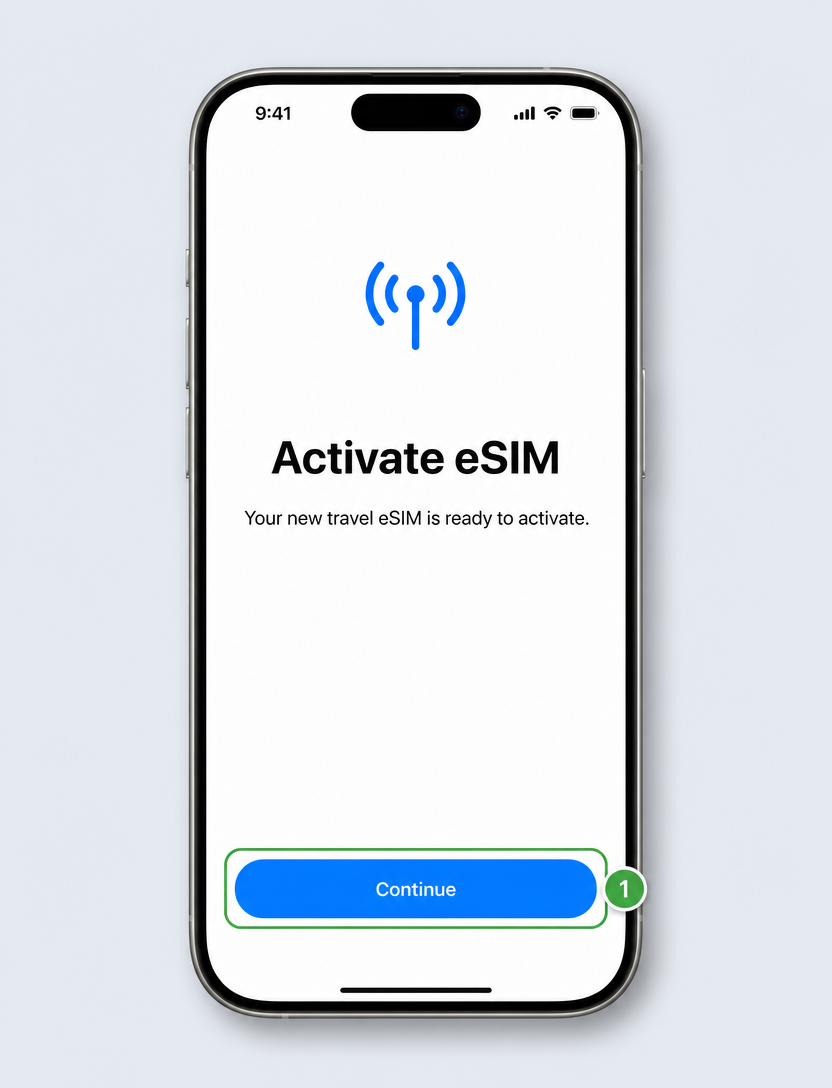
Step 1: On the 'Activate eSIM' screen, tap Continue to begin setting up your Travel eSIM.
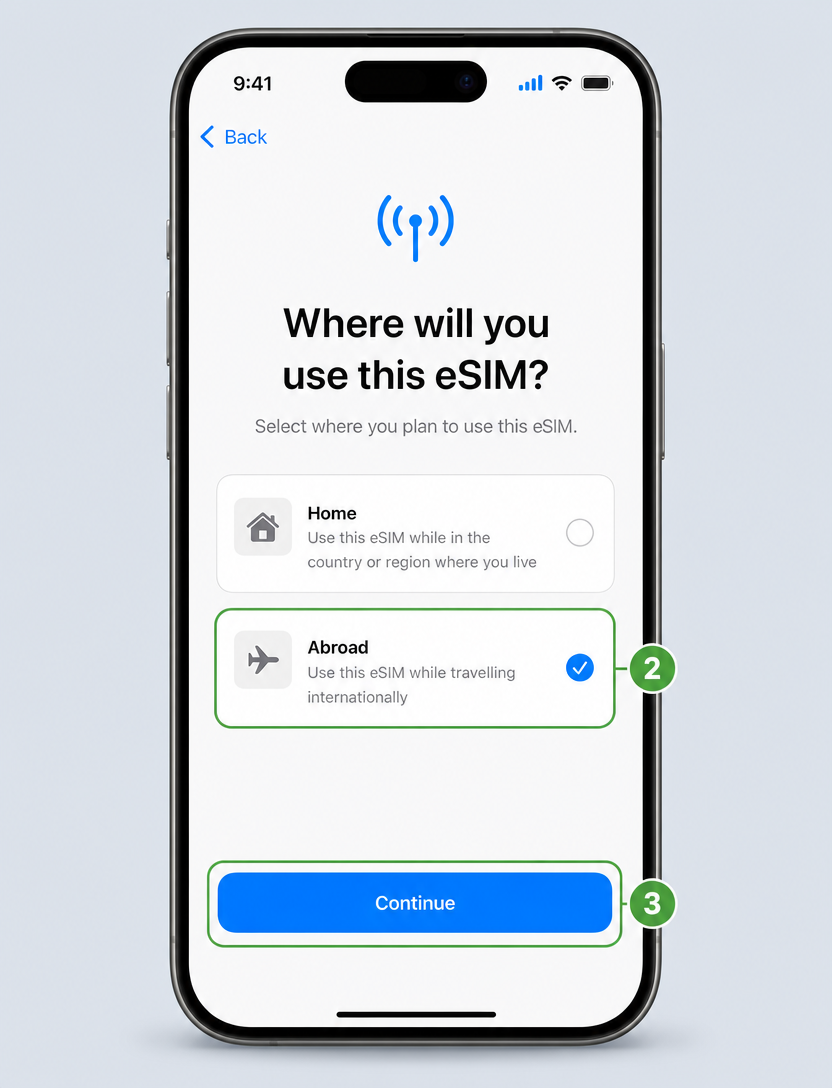
Step 2: On 'Where will you use this eSIM?', select Abroad so the eSIM is set up for international travel.
Step 3: Tap Continue.
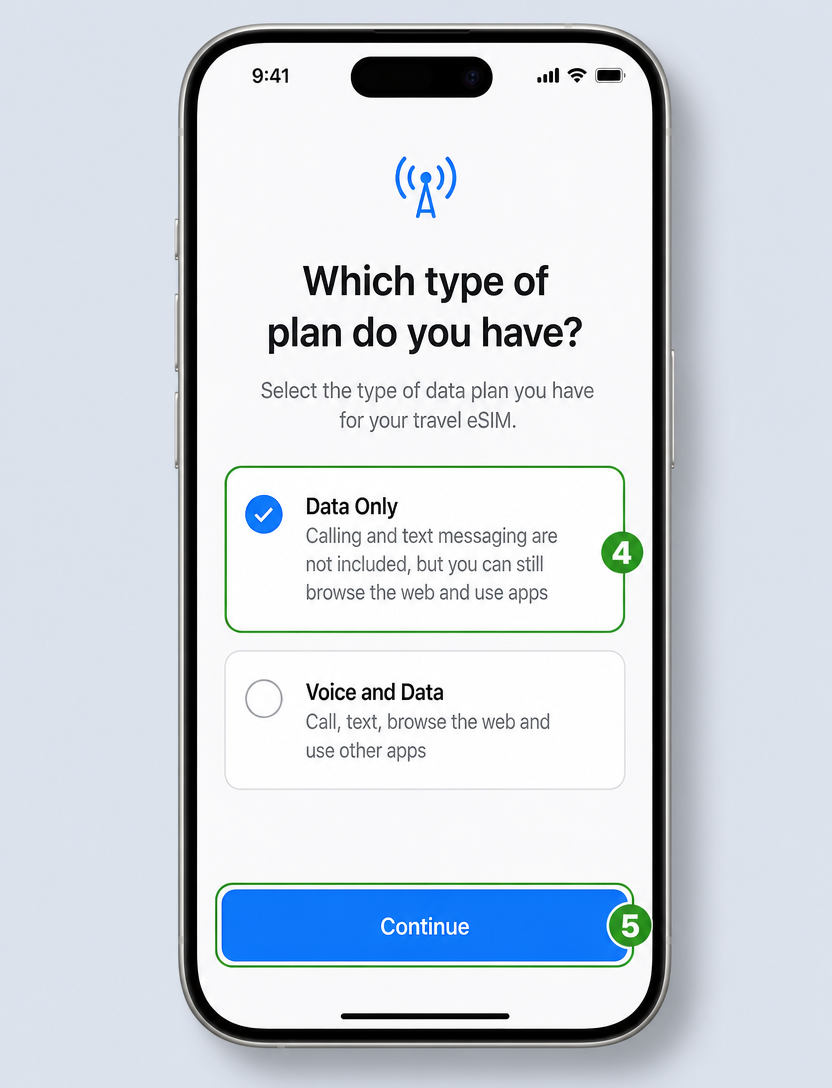
Step 4: On 'Which type of plan do you have?', choose Data Only to use mobile data without calls or SMS.
Step 5: Tap Continue.
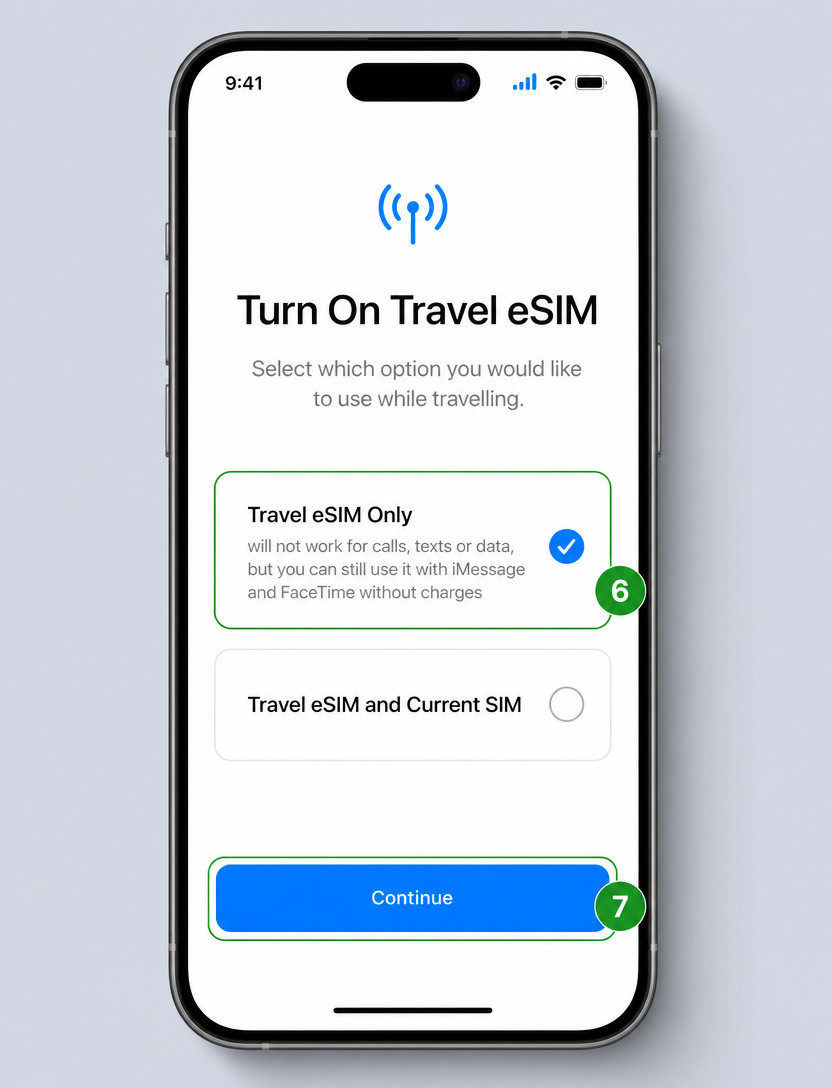
Step 6: On 'Turn On Travel eSIM', select Travel eSIM Only to use the eSIM during your trip.
Step 7: Tap Continue.
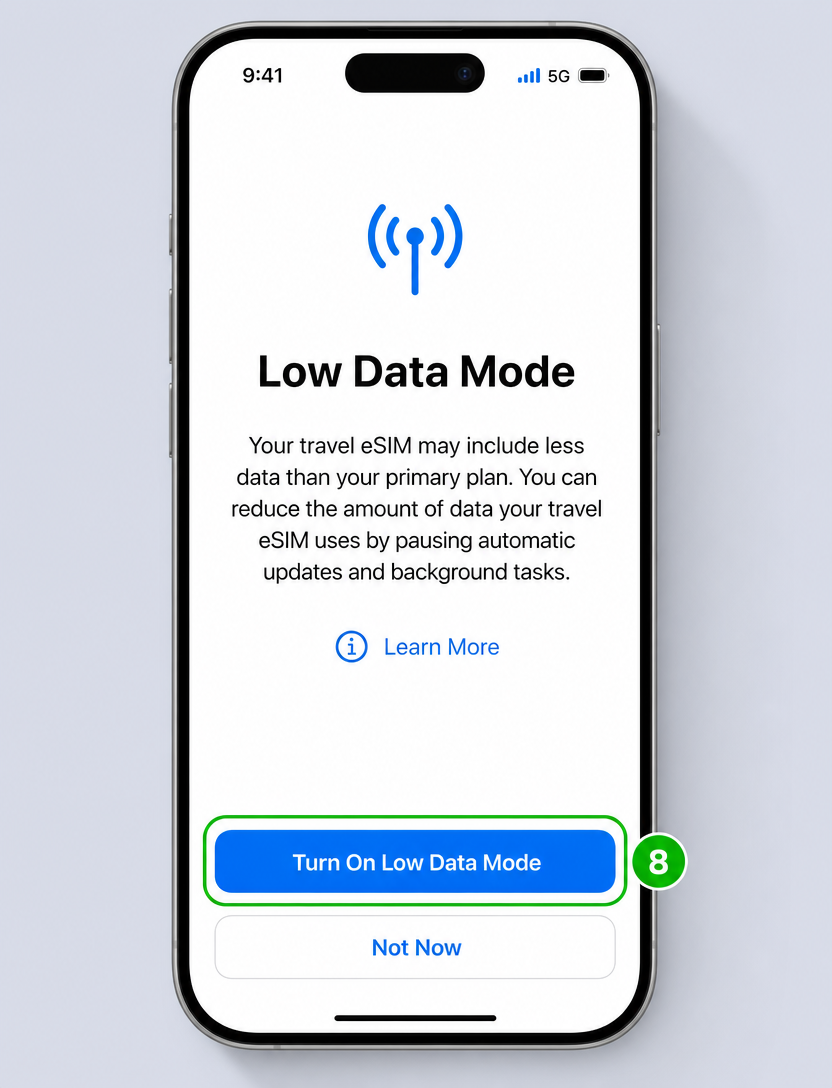
Step 8: To finish the setup, tap Turn On Low Data Mode.
How to activate an eSIM on an Apple iPhone
Once the eSIM is installed and configured, activation is done by turning the eSIM on and selecting it for mobile data. For travel eSIMs, you’ll also need to enable Data Roaming and turn OFF your primary SIM to avoid charges. This step is completed directly from your iPhone’s Mobile Service settings and doesn’t require an internet connection.
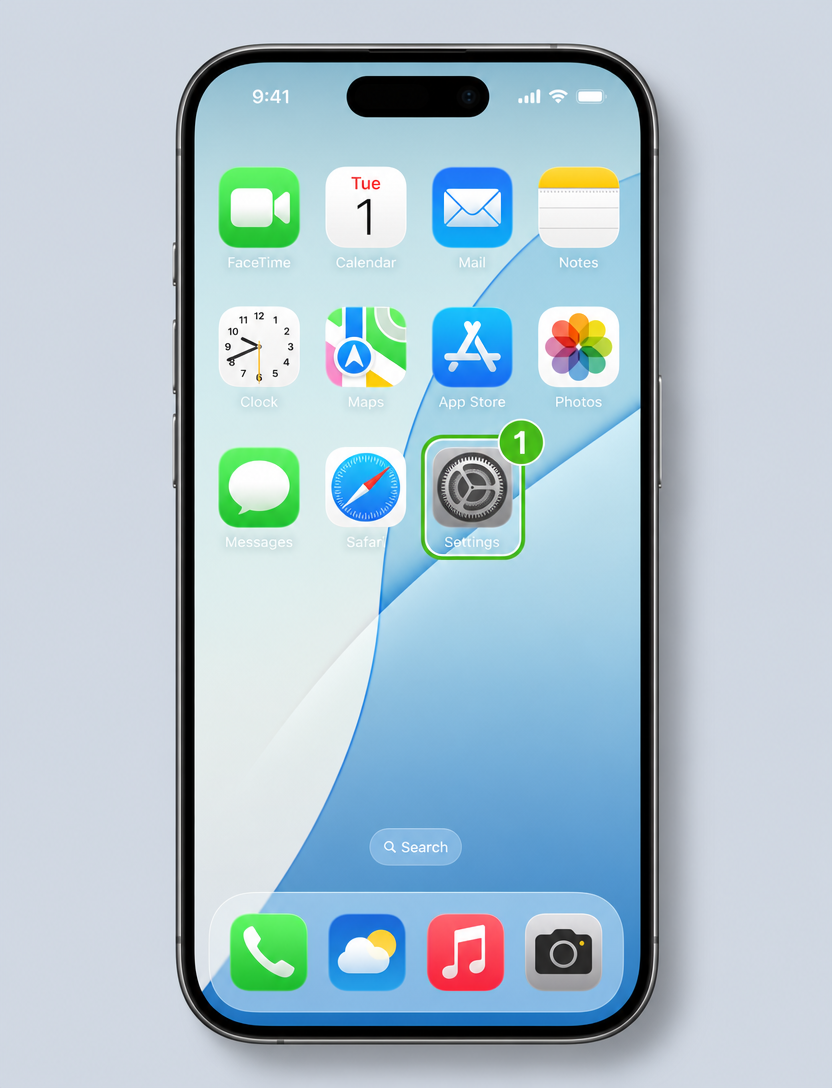
Step 1: From your home screen, open 'Settings'.
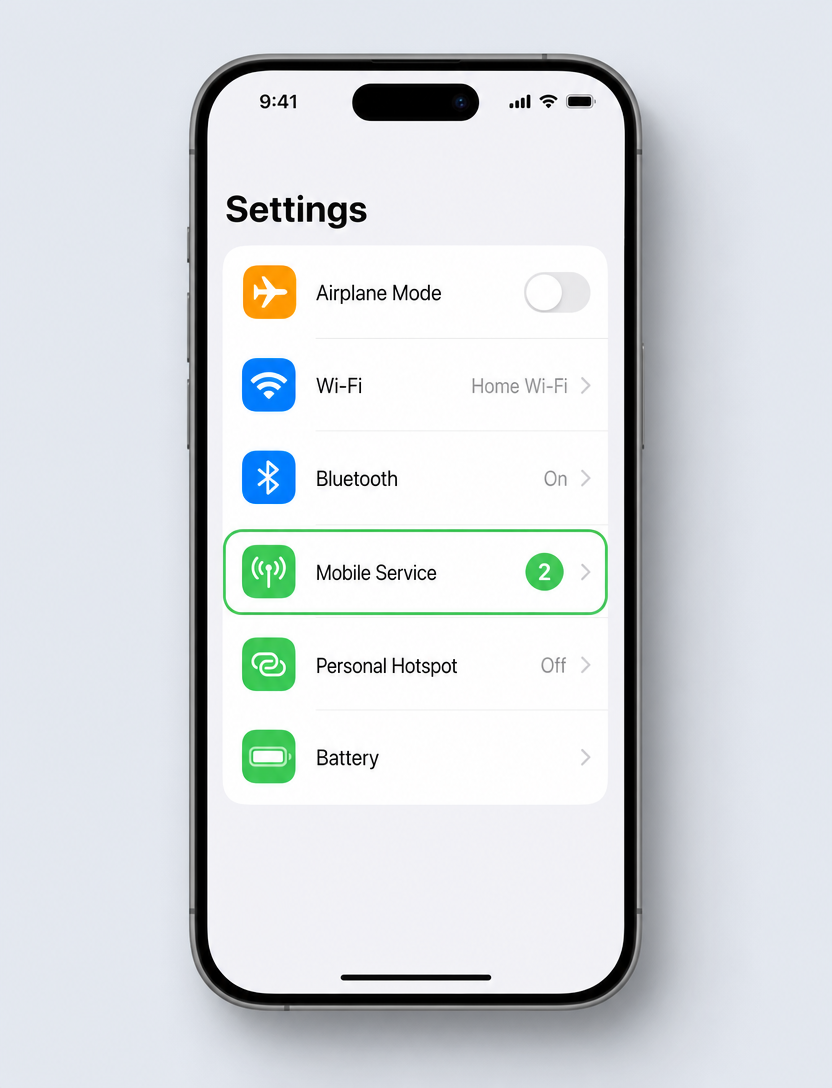
Step 2: Tap Mobile Service.
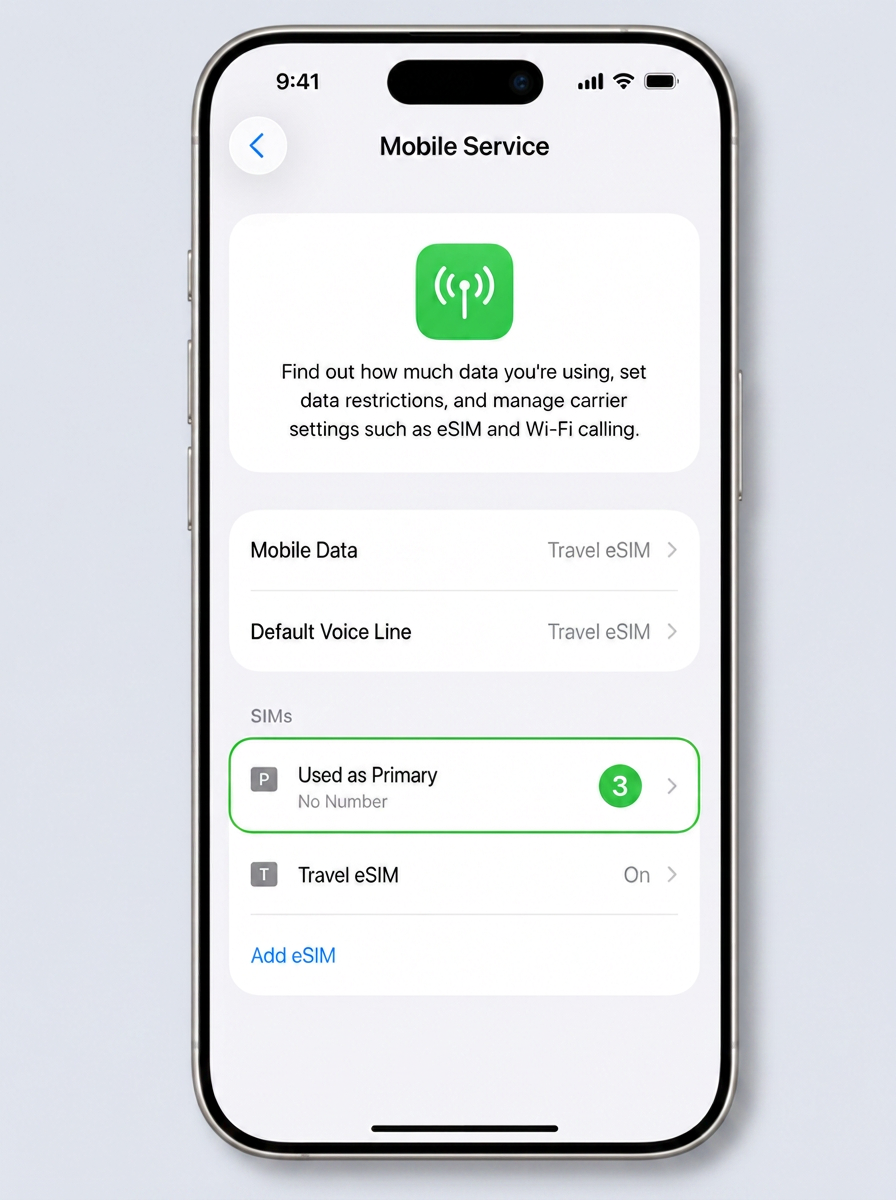
Step 3: Under SIMs, tap your primary line (shown here as Used as Primary).
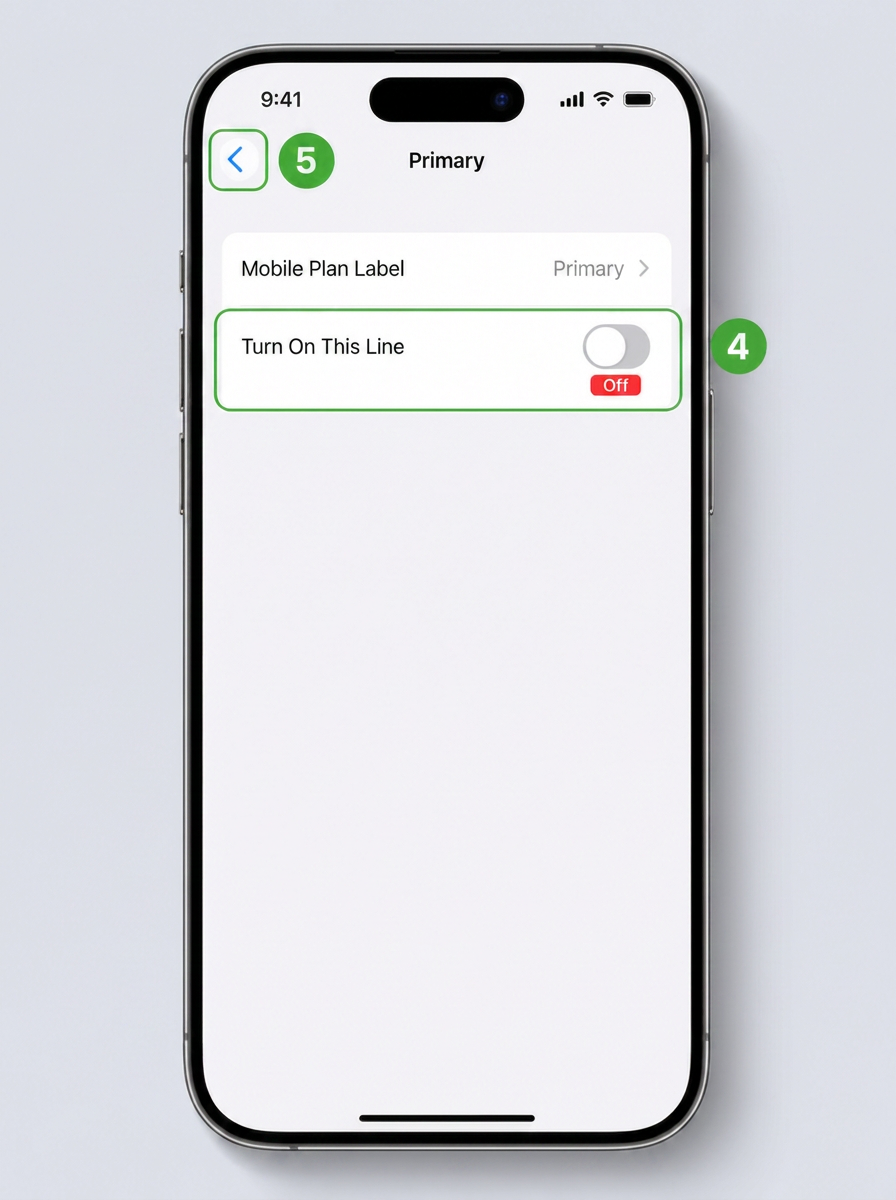
Step 4: Switch OFF 'Turn On This Line' to disable your primary SIM.
Step 5: Tap the back arrow.
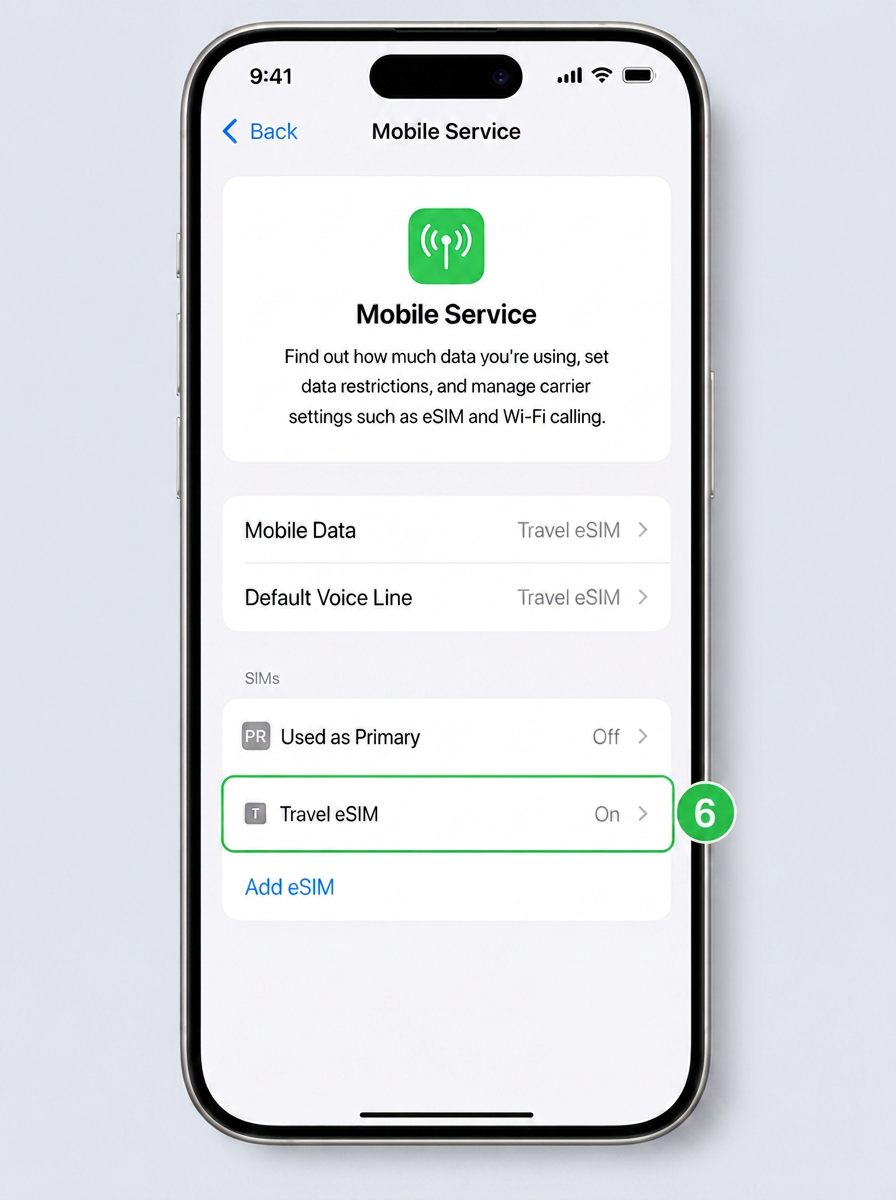
Step 6: Back on the Mobile Service screen, tap your new Travel eSIM line (shown as On).
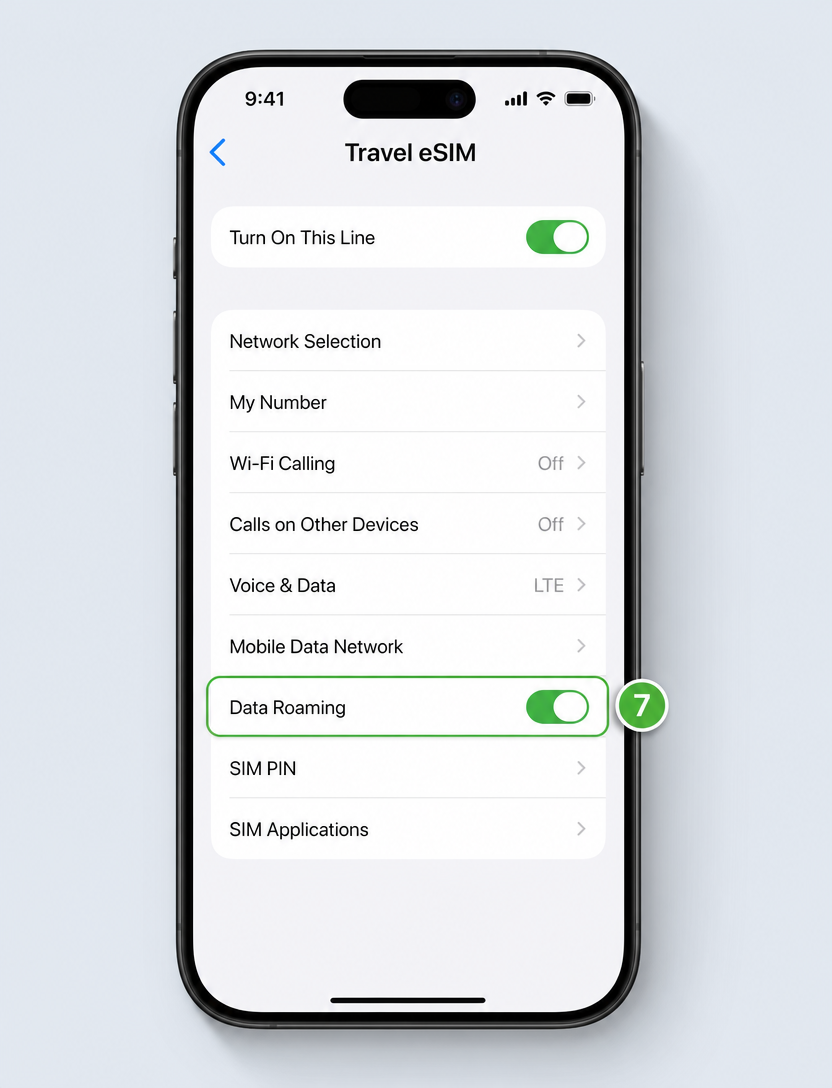
Step 7: Scroll down and enable Data Roaming for your Travel eSIM line.
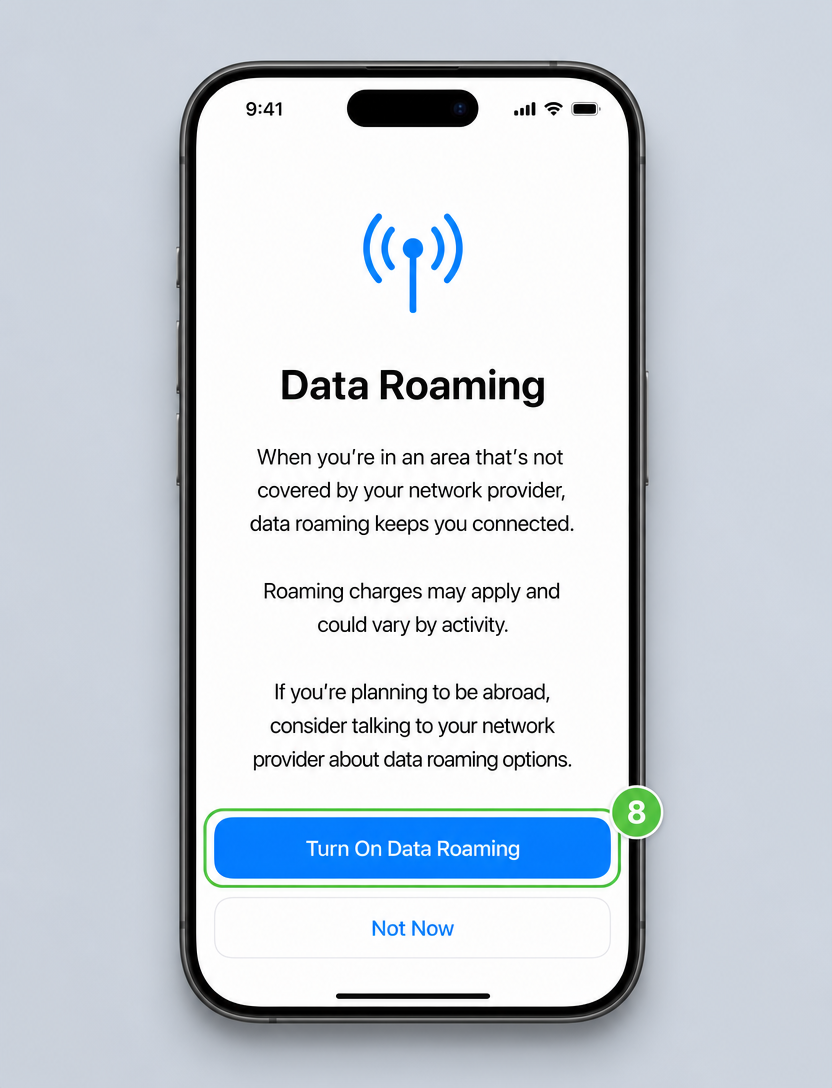
Step 8: On the 'Data Roaming' screen, tap Turn On Data Roaming.
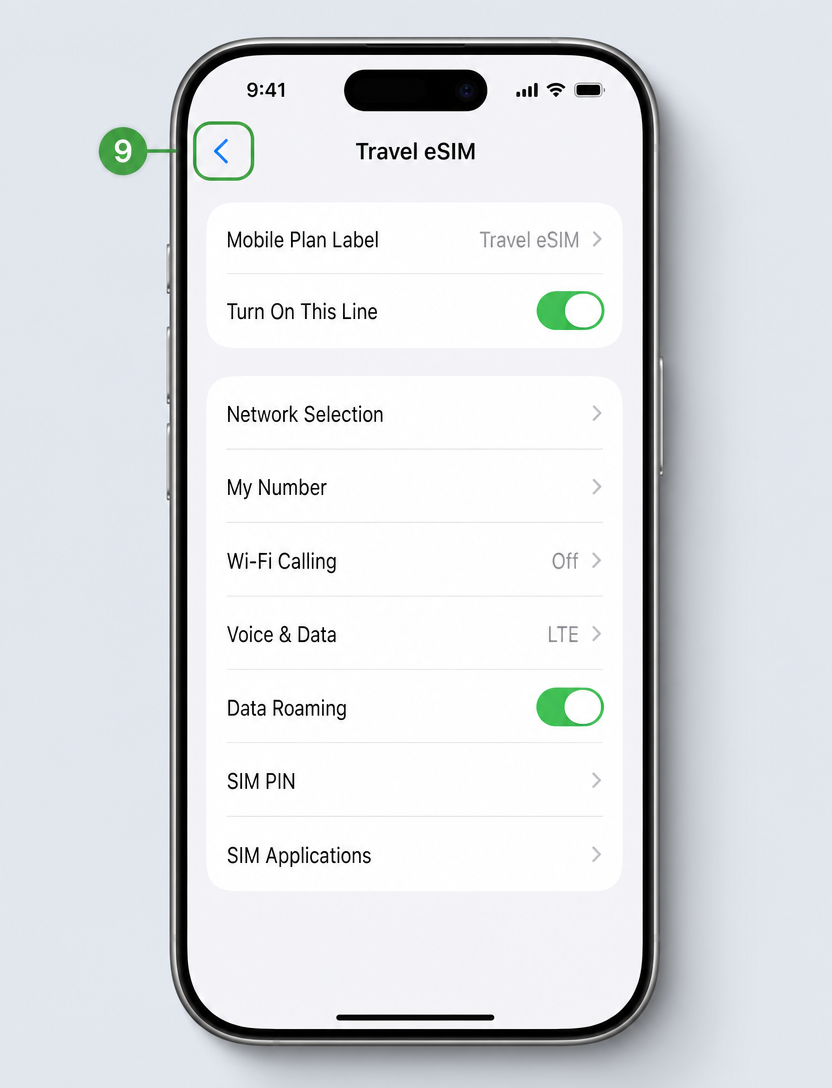
Step 9: Tap the back arrow to return to the Mobile Service screen.
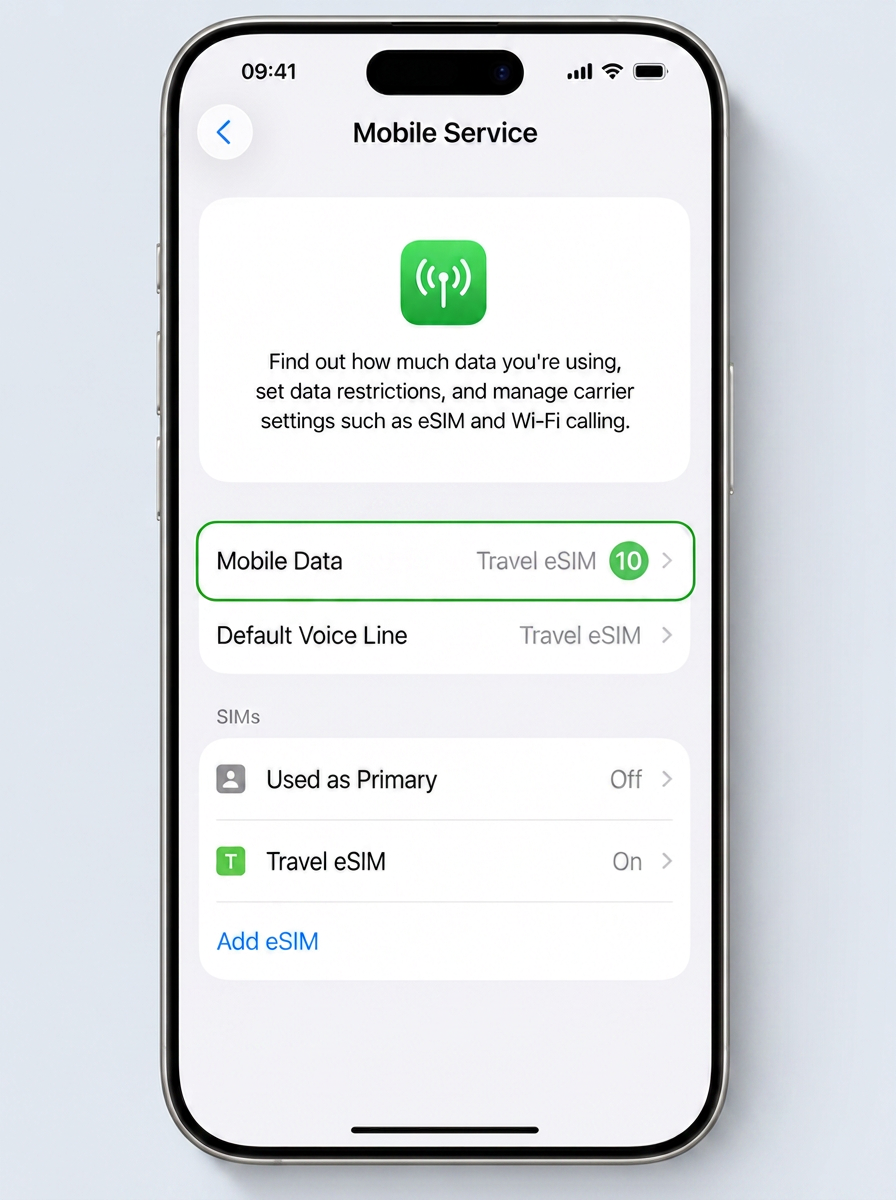
Step 10: Tap Mobile Data to choose which line is used for data.
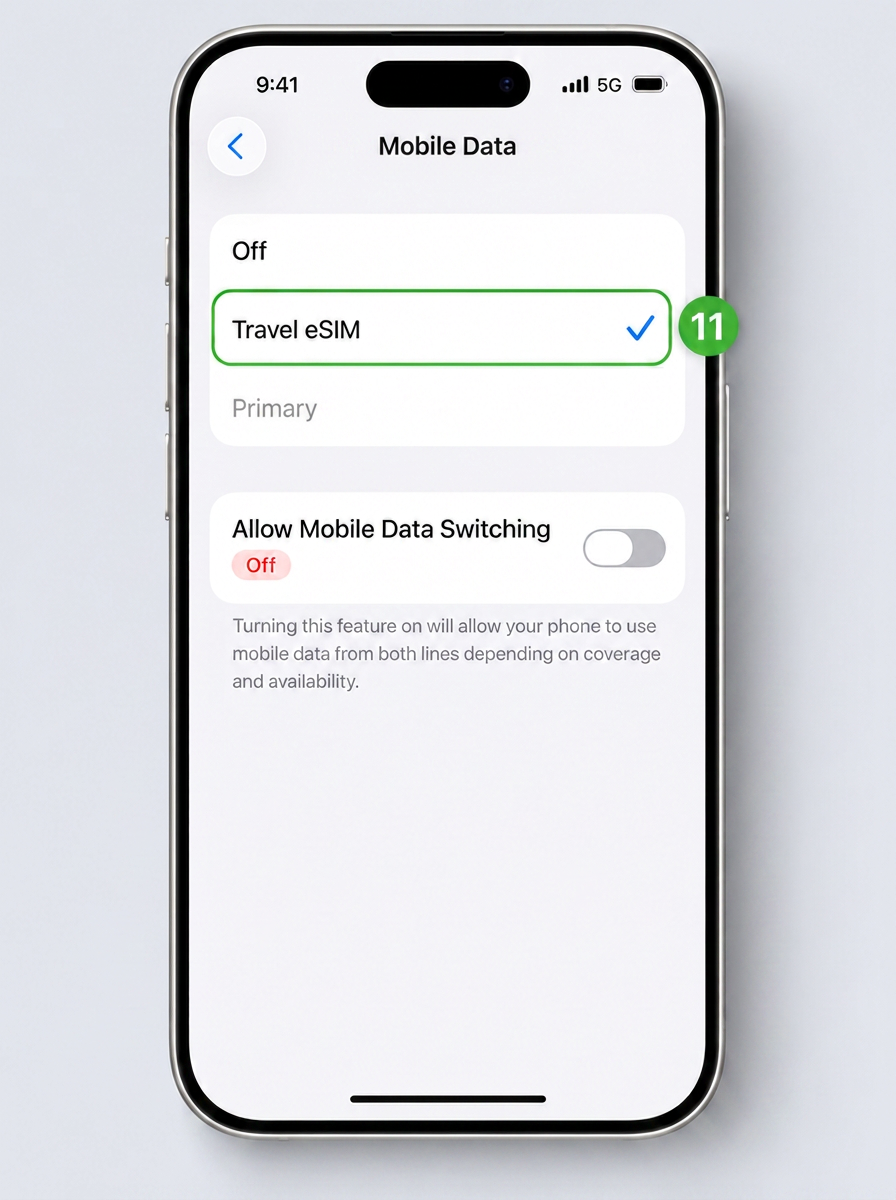
Step 11: Select Travel eSIM as your data line. Leave Allow Mobile Data Switching OFF to avoid using your primary SIM.
Need a hand? Our support team is happy to help you get connected — just reach out and we’ll guide you through it.