Install your eSIM on a Google Pixel
Install the eSIM directly from the eSIM link contained within the email. Once your Google Pixel detects the eSIM, continue with the activation steps below.
Activate the eSIM on a Google Pixel
Once you’re ready to start using mobile data, enable the eSIM so your Google Pixel can connect to a supported network. This is the step that starts your data service. If you’re using a travel eSIM, it’s recommended to enable the line only after you arrive at your destination to avoid activating it too early.
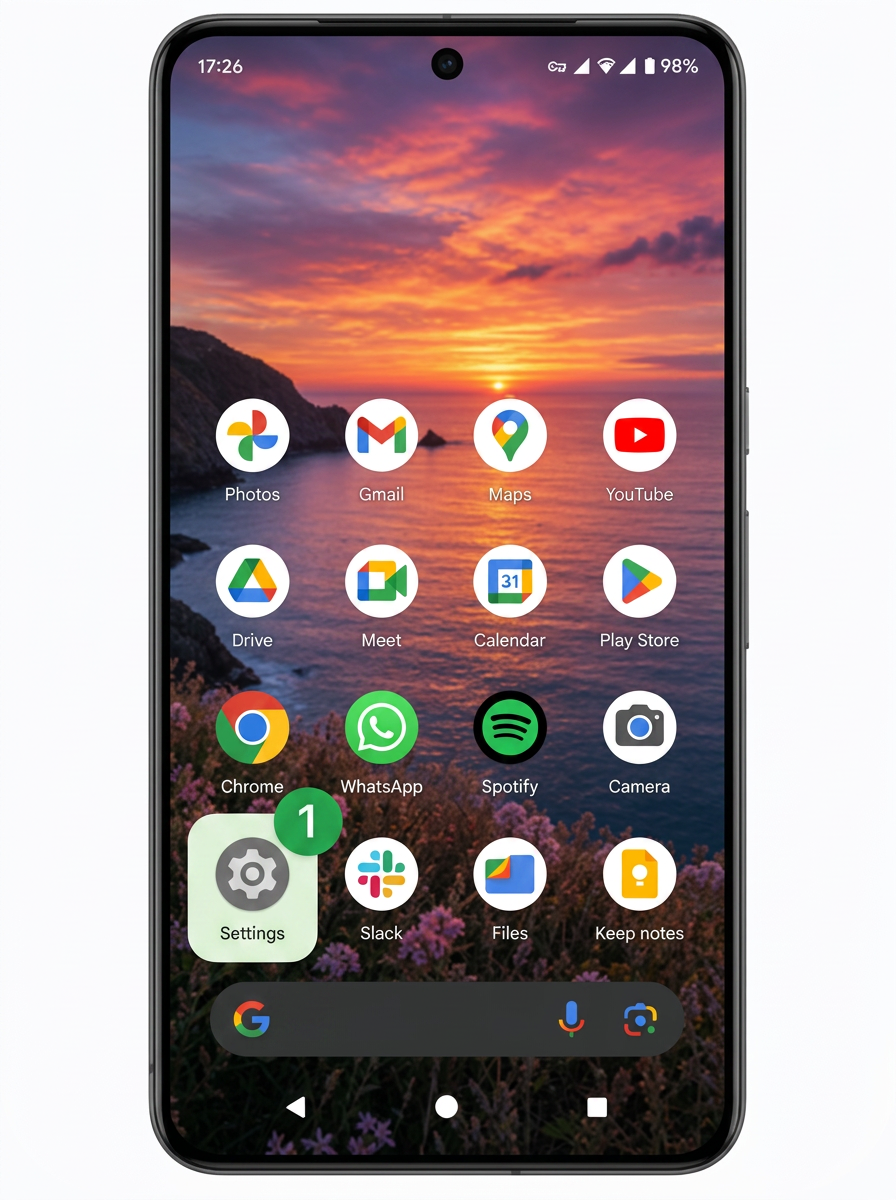
Step 1: From your home screen, open Settings.
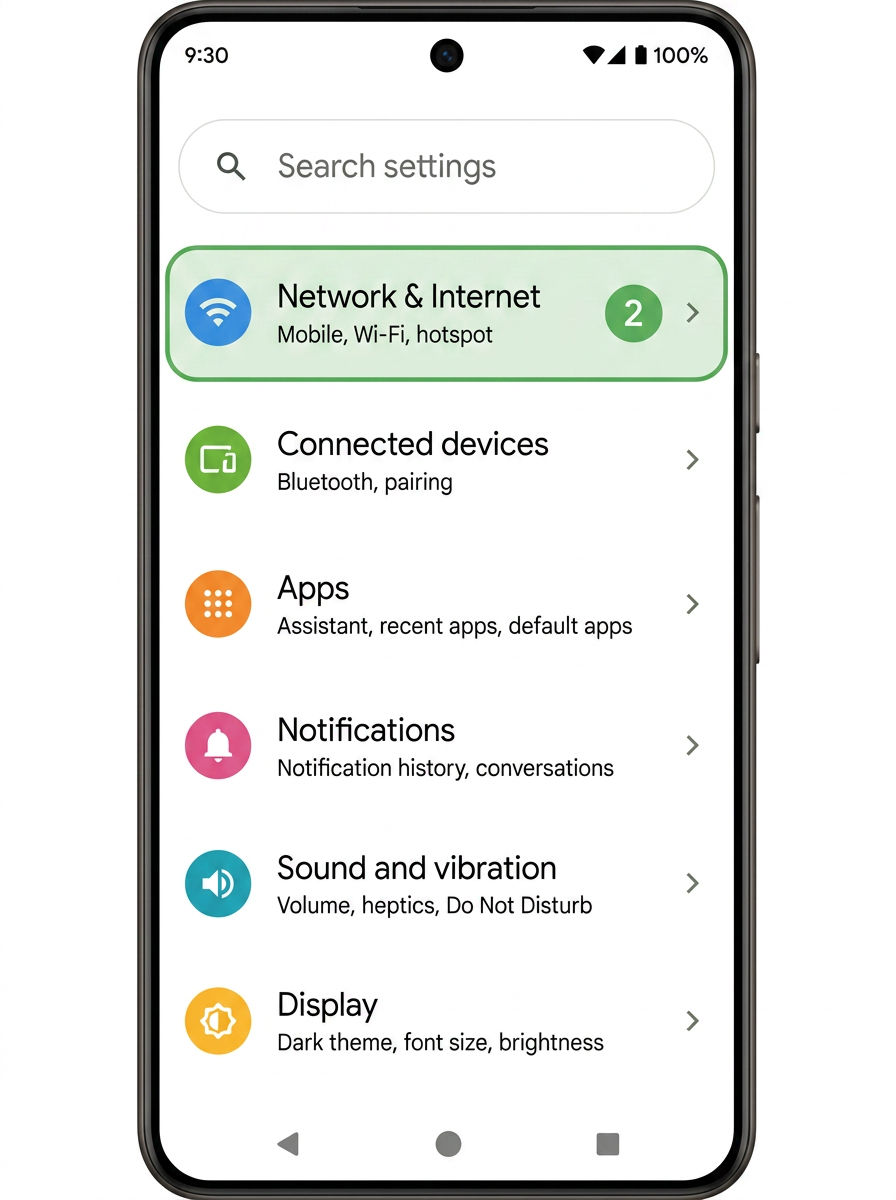
Step 2: Tap Network & Internet.
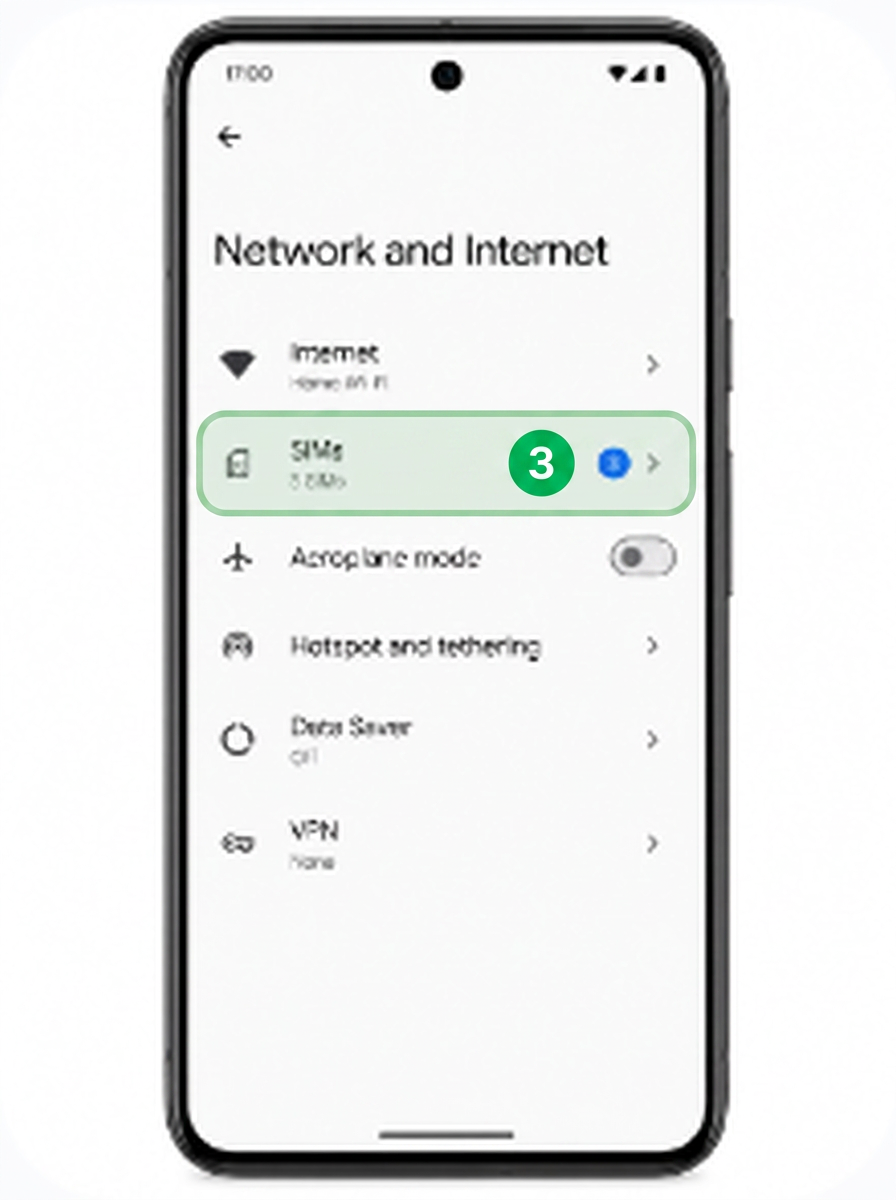
Step 3: Choose SIMs.
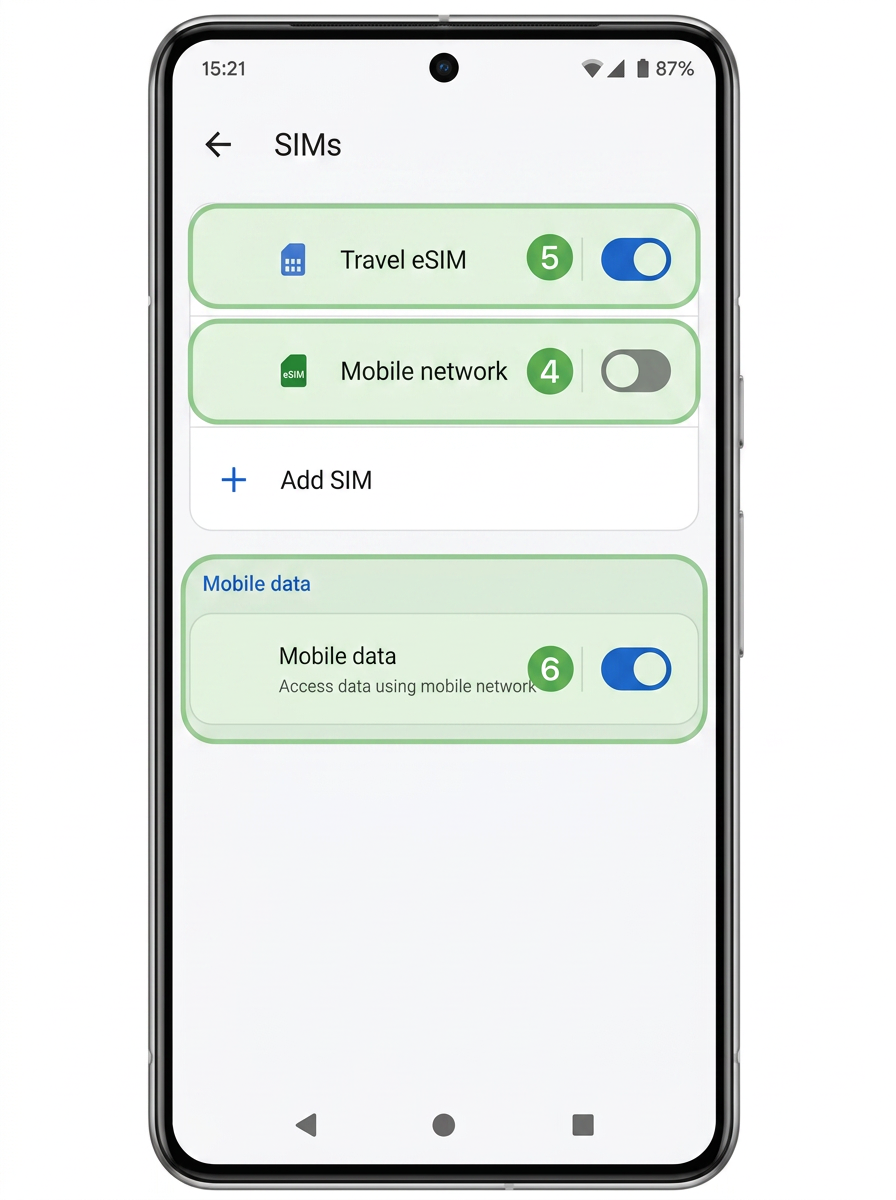
Step 4: Switch OFF your primary Mobile network SIM.
Step 5: Select your Travel eSIM and toggle it ON.
Step 6: Enable Mobile data so your device uses the network for data.
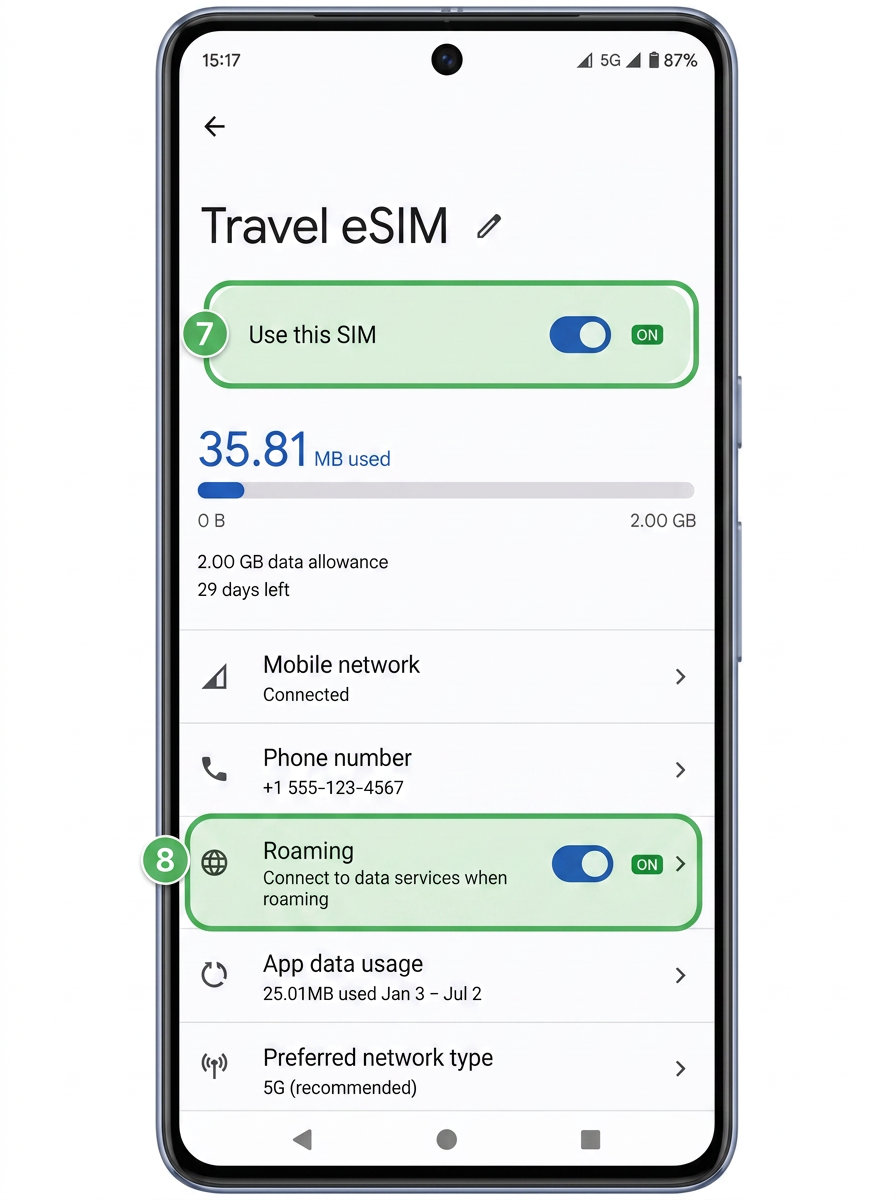
Step 7: Open your Travel eSIM and enable 'Use this SIM' (toggle it ON and confirm).
Step 8: Scroll down and enable Roaming (Data Roaming) for your Travel eSIM.
Need a hand? Our support team is happy to help you get connected — just reach out and we’ll guide you through it.