Install your eSIM on Samsung
Install the eSIM directly from the eSIM link contained within the email. Once your Samsung phone detects the eSIM, continue with the activation steps below.
How to activate an eSIM on a Samsung Phone
Activating your eSIM on Samsung is the final step to get your line up and running. You only need to enable the eSIM profile and select it for mobile data in your settings. If you are using a travel eSIM, this should only be done once you arrive at your destination to ensure your device connects correctly and your plan starts at the right time.
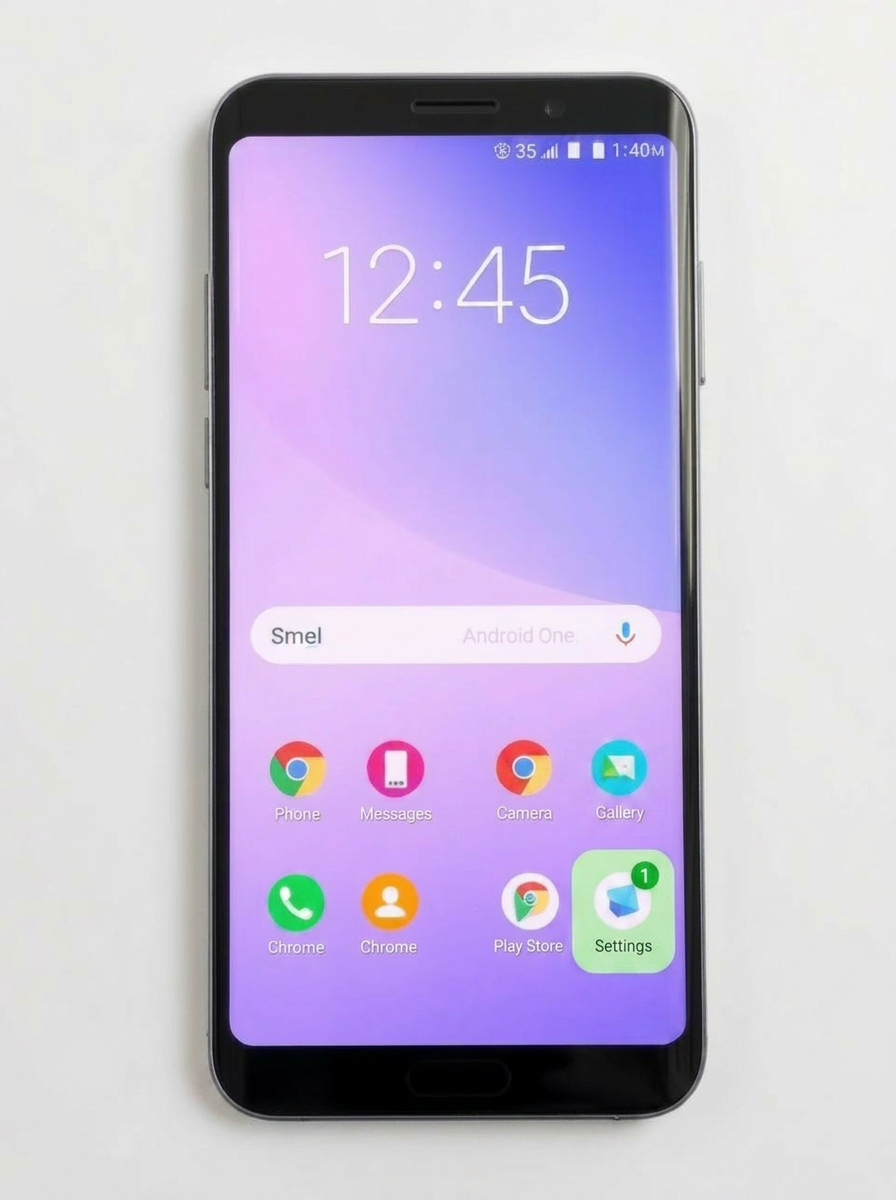
Step 1: From your home screen, open Settings.
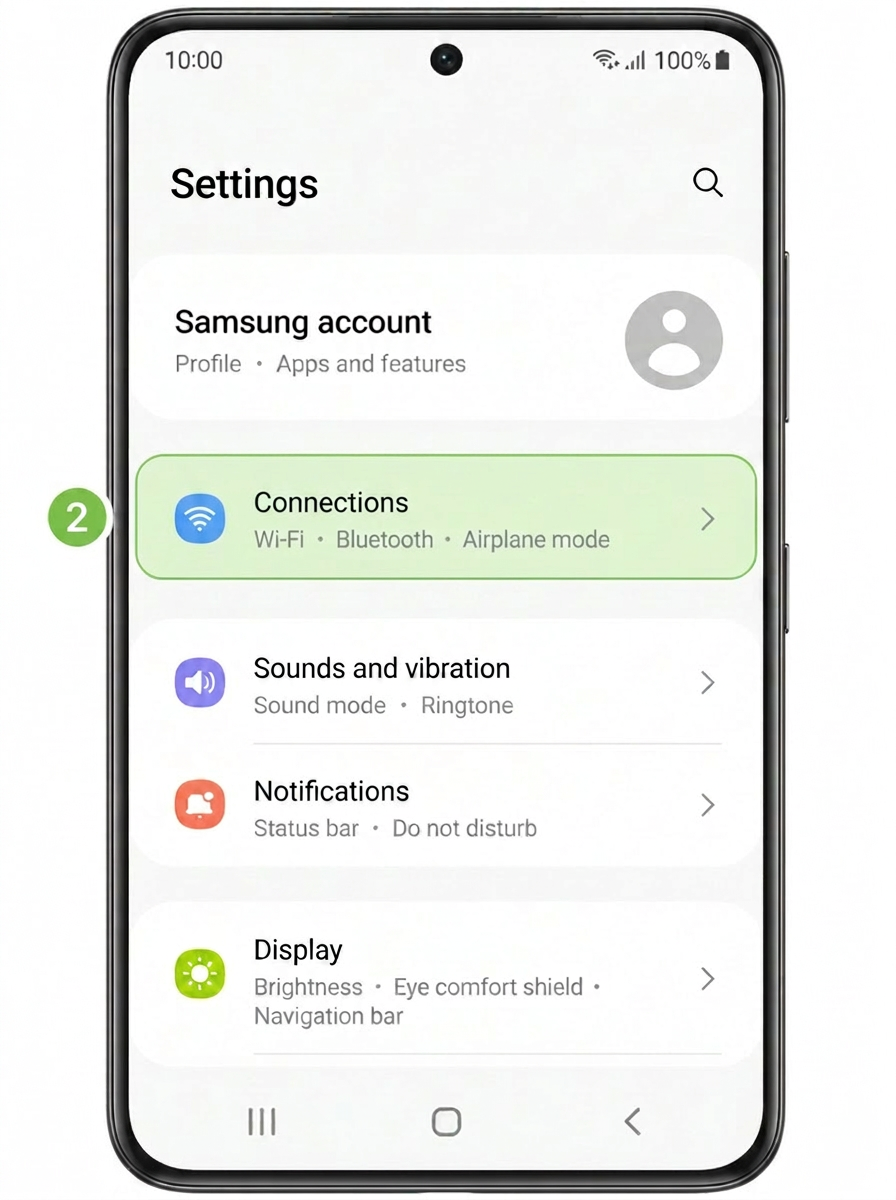
Step 2: In Settings, tap Connections.
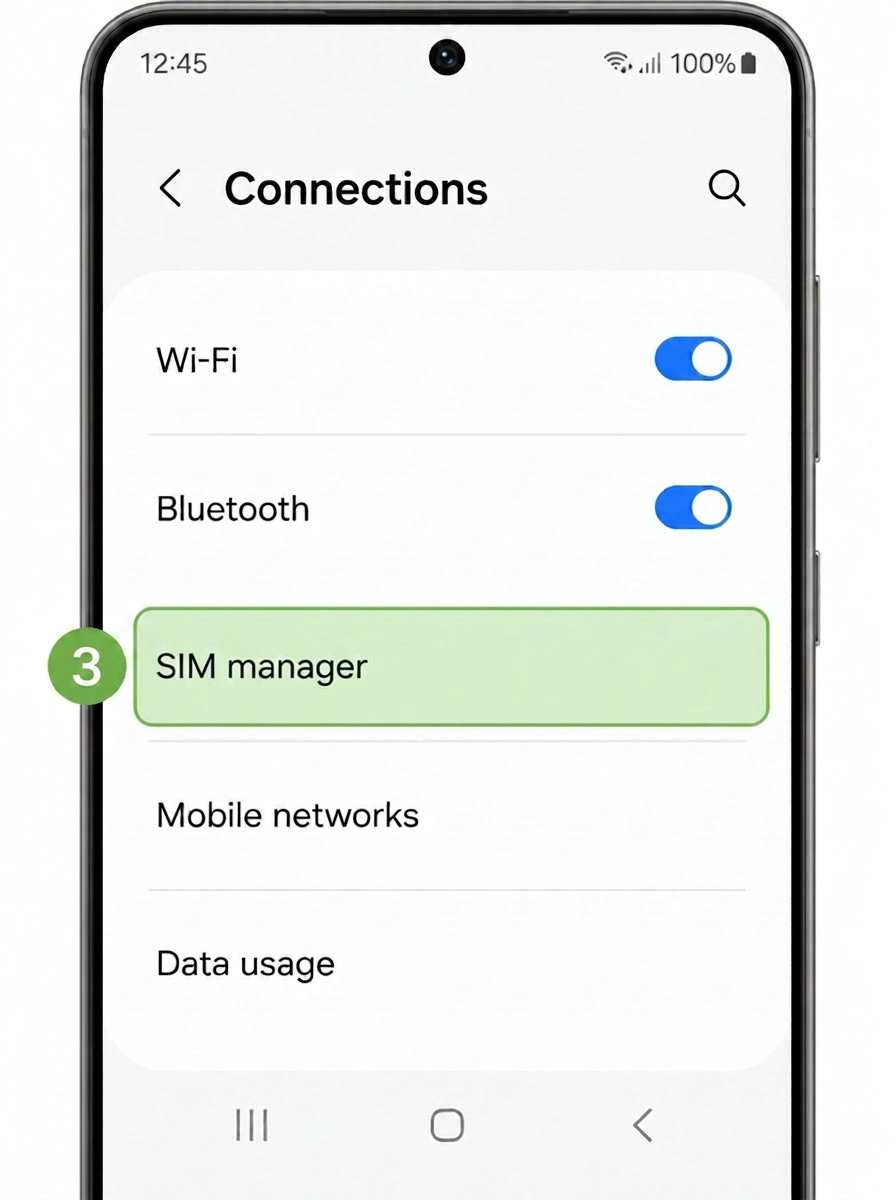
Step 3: On the Connections screen, tap SIM manager.
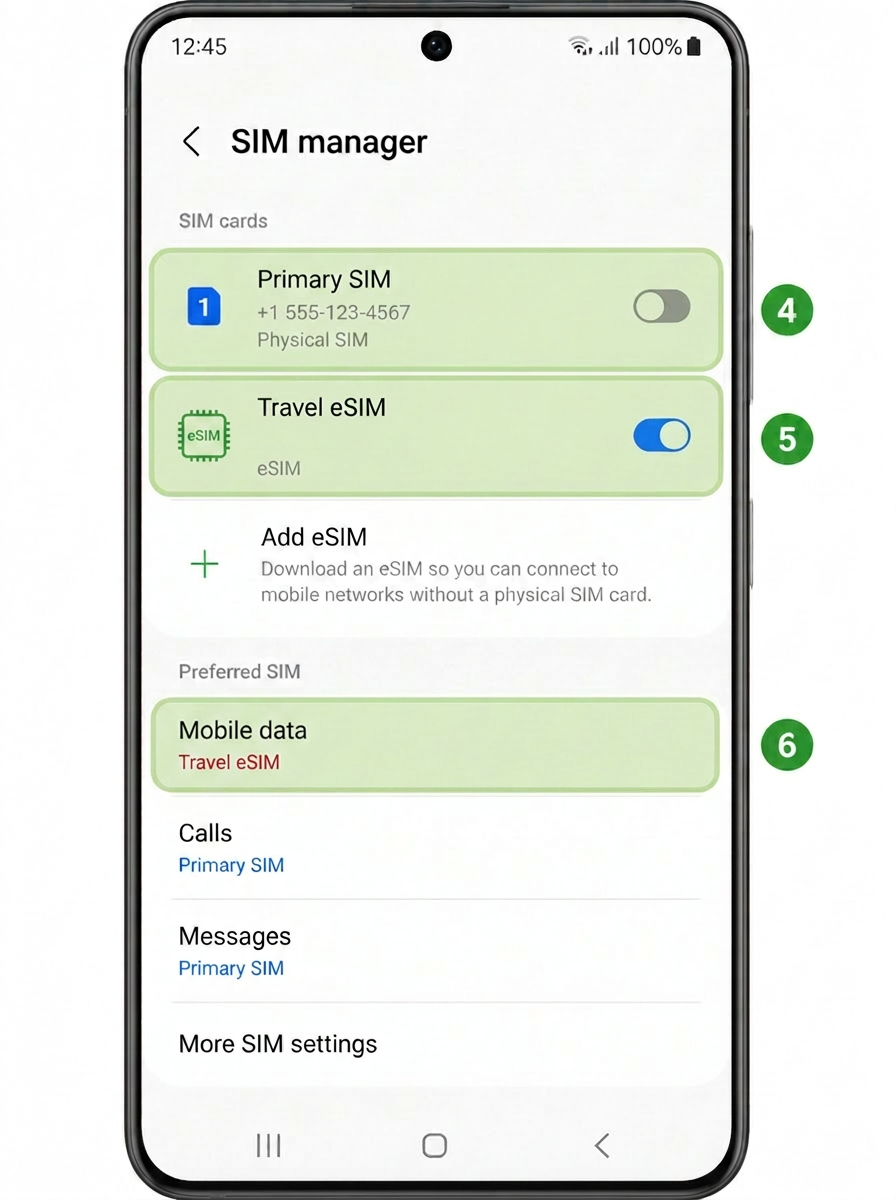
Step 4: Turn OFF your personal SIM to avoid charges from your home country's carrier.
Step 5: Turn your Travel eSIM ON.
Step 6: Under Mobile data, select this new eSIM (it appears with the name you assigned or as the most recently added eSIM).
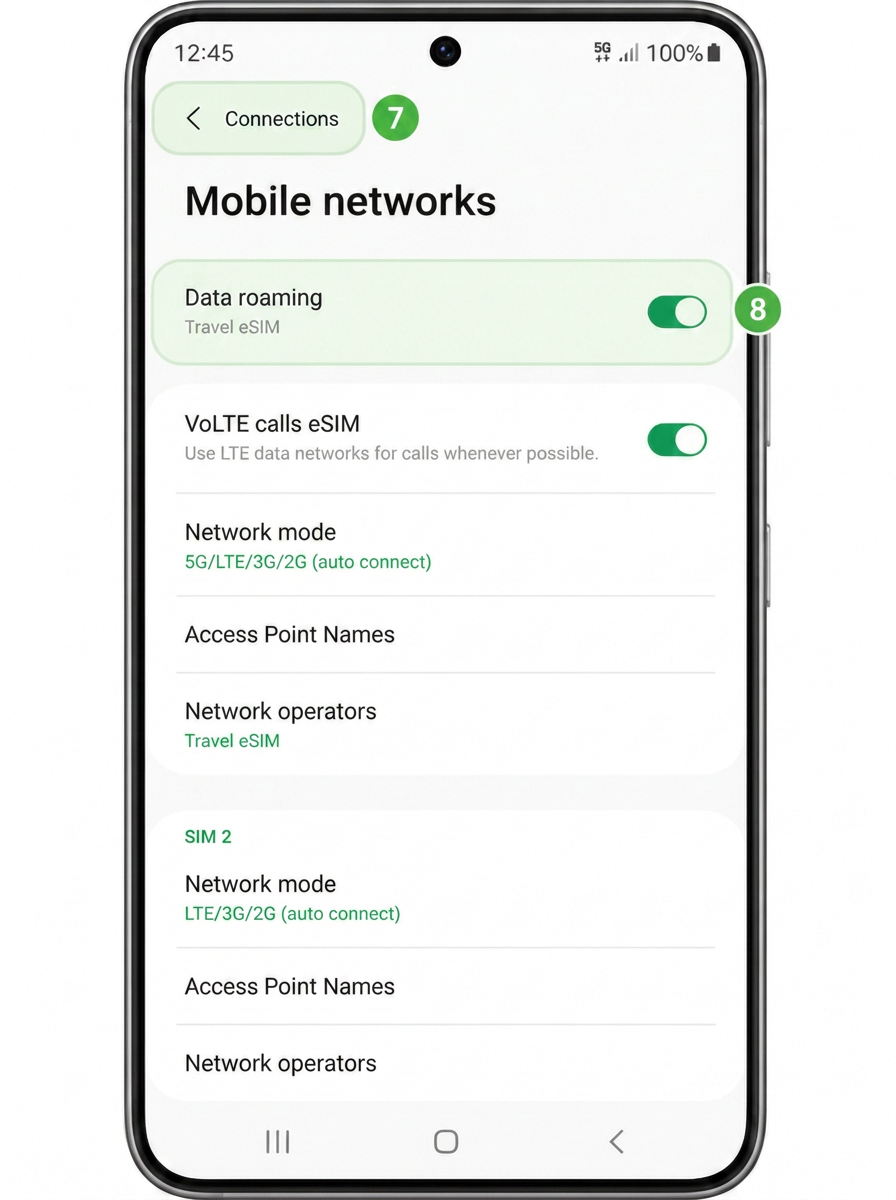
Step 7: Go back to Connections and tap Mobile networks.
Step 8: Turn ON Data Roaming for the Travel eSIM to start using mobile data.
Need a hand? Our support team is happy to help you get connected — just reach out and we’ll guide you through it.