Set up the APN on your Samsung Phone
If your eSIM isn't connecting to data after activation, you may need to set up the Access Point Name (APN) manually. Follow these steps on your Samsung Phone.
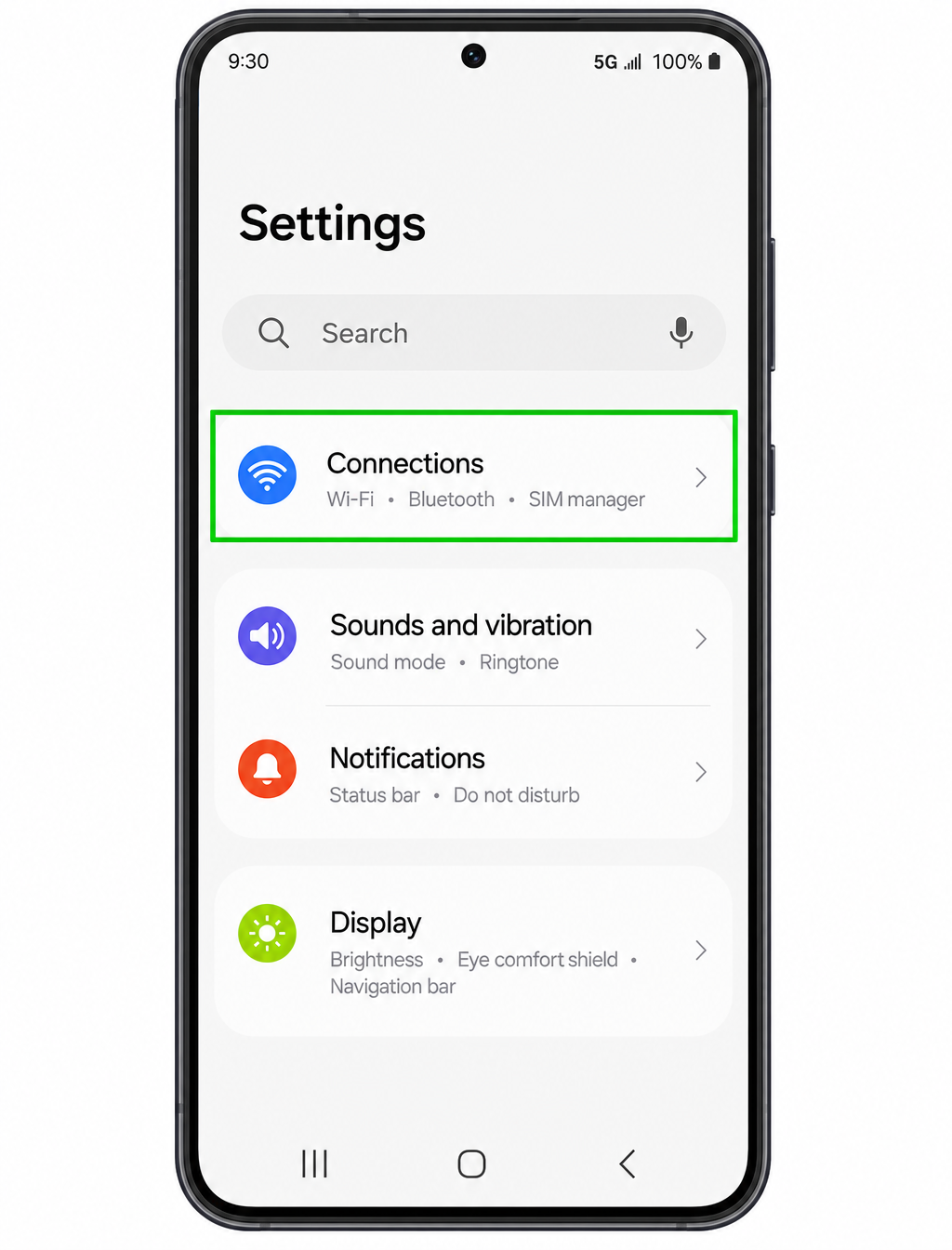
Step 1: Open Settings and tap Connections.
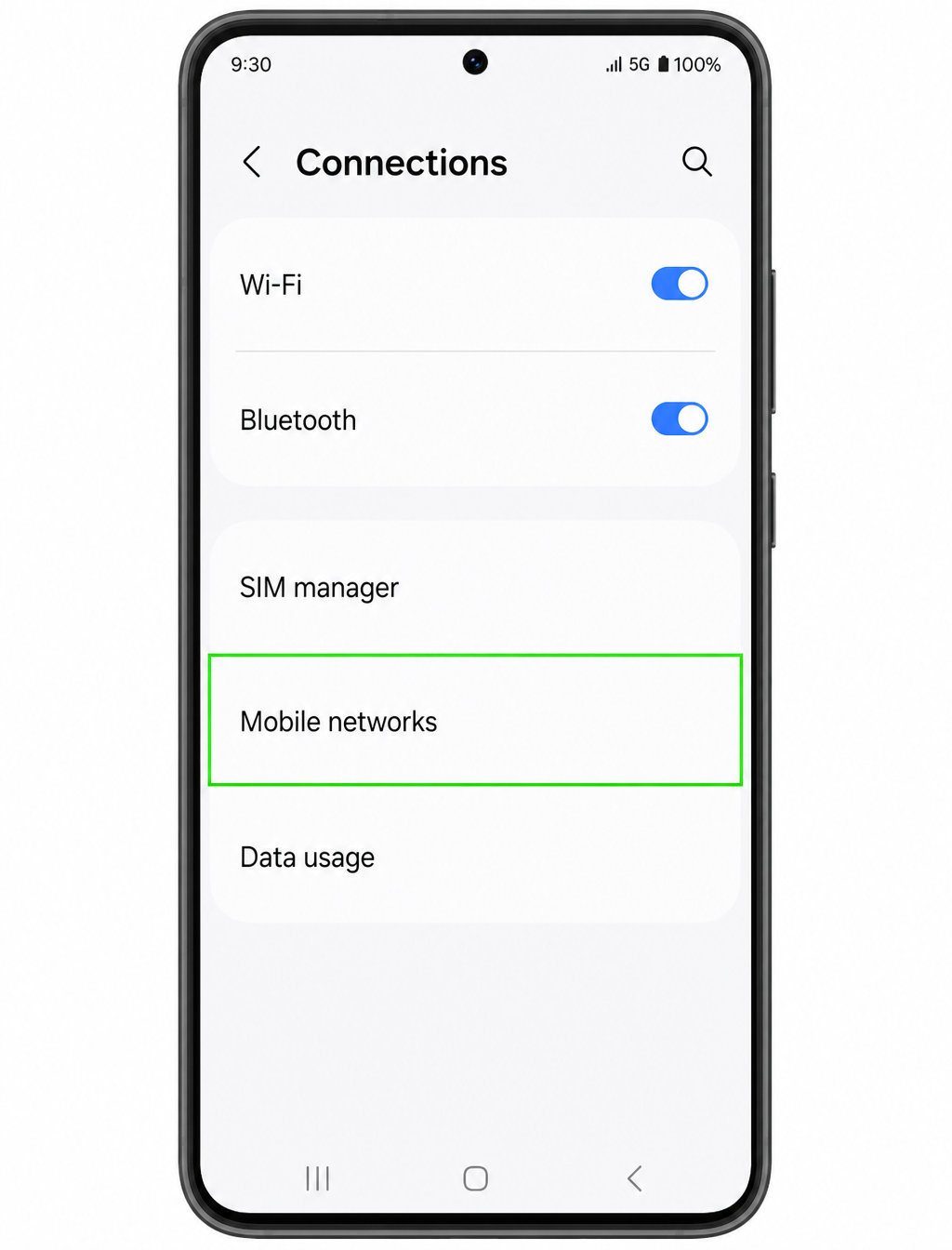
Step 2: Tap Mobile networks.
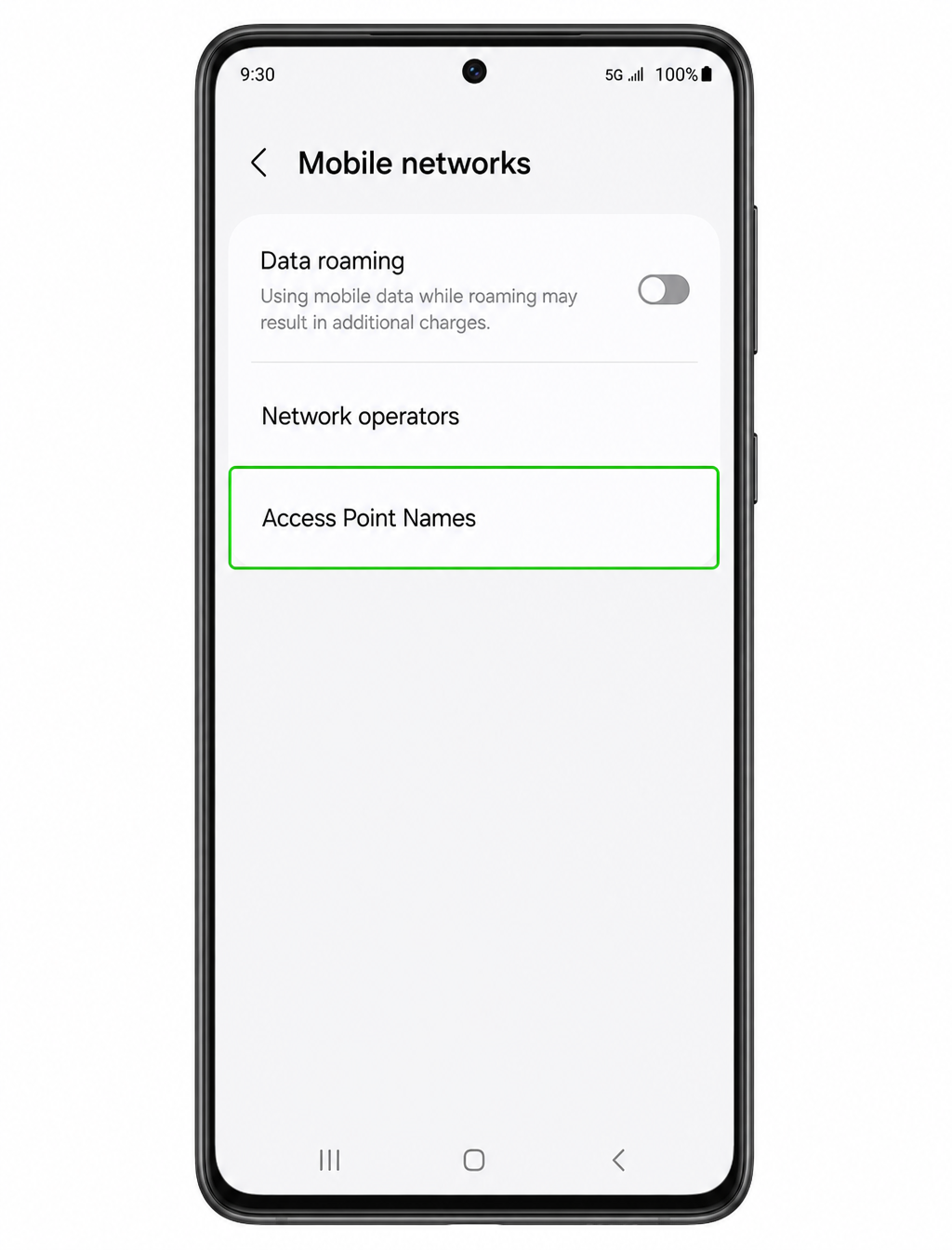
Step 3: Select Access Point Names.
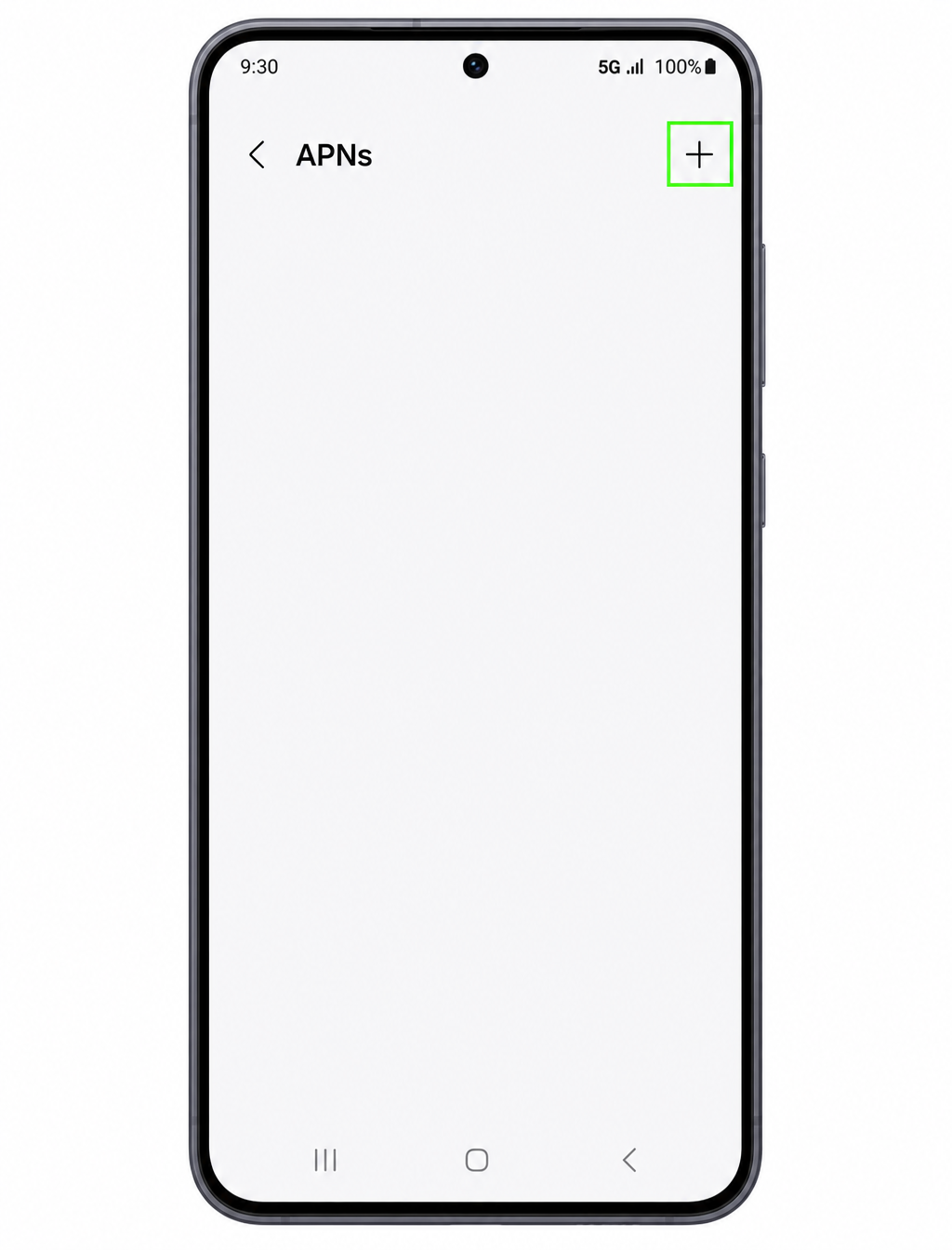
Step 4: If this is blank, you'll need to create an APN. To create a APN, press the Add '+' icon at the top right.
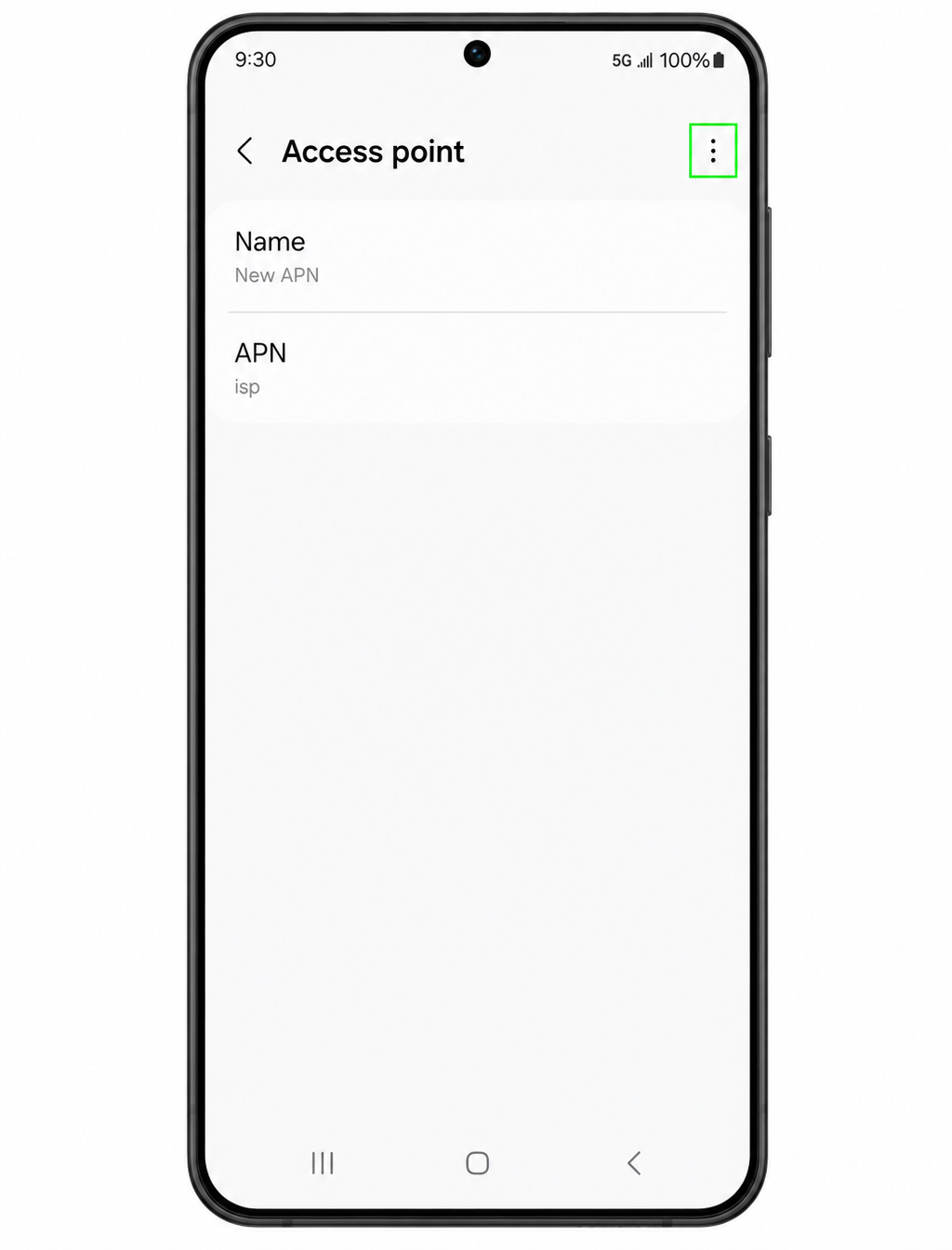
Step 5: In the Name field, type 'New APN' so you can easily recognise it.
Step 6: In the APN field, enter the word 'isp'.
Step 7: Tap the Menu icon (three dots) in the top-right corner, then select Save.
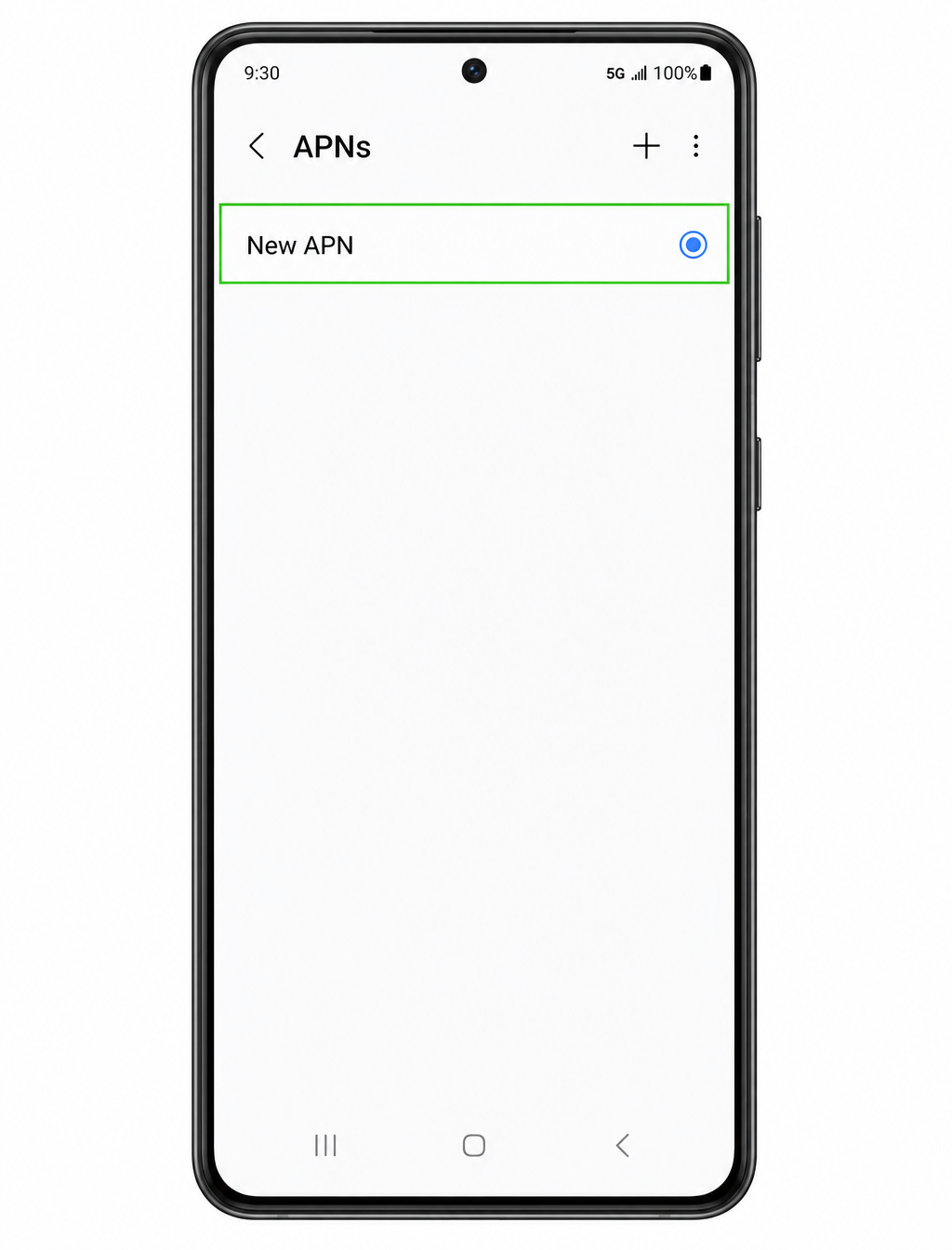
Step 8: Once the changes are saved, select the newly created APN (New APN) so your Samsung uses it.
Need a hand? Our support team is happy to help you get connected — just reach out and we'll guide you through it.